


GPS rental vs phone in Maui: Which navigation option should you choose
Updated: 3 days ago
A rental GPS isn’t automatically the better choice just because you’re driving somewhere unfamiliar. For GPS rental versus using your phone in Maui, a phone with offline maps works well for many trips, while a dedicated unit can help when cellular coverage is limited or you prefer a separate device. Rental cars in the United States don’t all include built-in navigation, so don’t assume yours will.
It makes sense to want familiar directions without adding another cost or distraction to your trip. The key is whether your phone can navigate offline, whether you’re comfortable using it, and how much your route may depend on cellular coverage. This guide compares phone apps, rental GPS units, and built-in systems, then helps you choose based on your plans around Maui. You’ll also learn how to prepare your phone before setting out and what to keep in mind when following directions on unfamiliar roads.
Table of Contents
Smartphone GPS guide apps for driving around Maui
A phone can be a practical navigator in Maui if you download maps before leaving and know which features require mobile data. The trade-off is simple: offline directions can work without a connection, while live traffic and rerouting require one.
For hands-free navigation, enter your destination while parked, secure your phone in a mount, and leave it untouched while driving. Set up directions before you move.
Offline Phone Maps
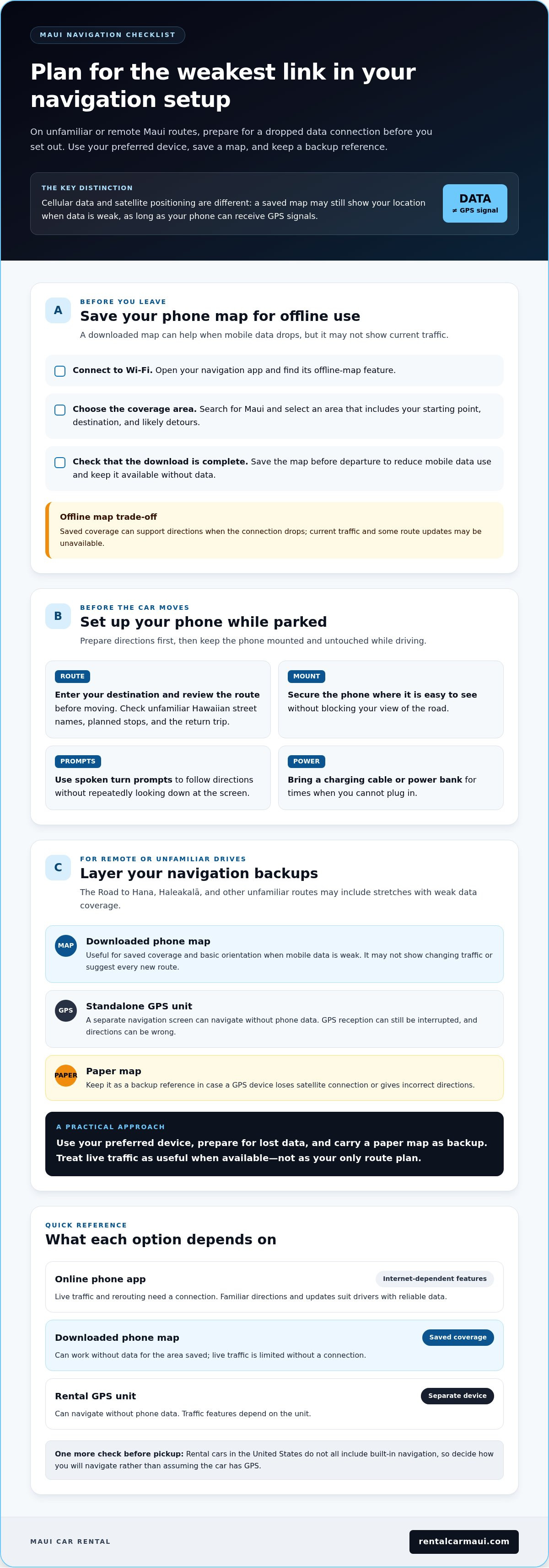
To download maps on an iPhone or Android phone, connect to Wi-Fi, open your navigation app, and find its offline-map feature. Search for Maui, select an area that covers your planned drives, and download it before you leave. Menu labels vary by app, but the goal is the same: save the map to your phone so you can use it without mobile data.
Offline maps can provide directions when your data connection drops, but may not include current traffic. Confirm the download is complete before departure, and choose an area broad enough to cover your starting point, destination, and likely detours.
Phone Navigation in Rental Cars
A smartphone app lets you use navigation you already know instead of learning a rental car’s unfamiliar system. Mount the phone securely, connect a charging cable or portable power bank, and start directions while parked. If your drive begins after a cruise stop, you can plan around Maui cruise-port pickup options before setting off.
Hawaiian street names may be unfamiliar, so review your destination and route before moving. Spoken turn prompts can help you follow directions without repeatedly looking down at the screen.
Some navigation features, such as live traffic or rerouting, may depend on mobile data. When your phone loses signal, an app that relies on internet access may stop updating directions. An offline map can still help, but won’t show changing traffic. Travelers using mobile data abroad may also face extra charges, especially when apps download traffic updates or new routes.
For a steadier setup, use a phone mount that keeps the screen easy to see without blocking your view of the road. Bring a charging cable and a power bank for times when you can’t plug in. Downloading maps over Wi-Fi before driving can also reduce mobile data use.
Choose an offline phone map for familiar controls and a backup when data drops. Prioritize live traffic only when your route has a reliable connection.
Choosing navigation for different travel conditions
Cell service isn’t reliable on every drive. On the Road to Hana or Haleakalā, prepare for stretches without data by saving an offline map before you leave.
A downloaded map can continue showing your location when mobile data is weak, as long as your phone can receive GPS signals. Cellular data and satellite positioning are different: an app that needs internet may stop updating the route, while a saved map may still show where you are.
Route conditions affect which backup makes sense. One traveler reported having no cell coverage for most of a drive over Maui’s upper route, and a standalone GPS helped track the remaining distance. That experience doesn’t predict coverage on every trip, but it shows why relying only on live phone directions can leave you without updates.
Before setting out on a remote or unfamiliar drive, take these steps:
Download the map area that includes your starting point, destination, and likely turns.
Review the route while parked, especially the return trip and any planned stops.
Keep a paper map as a backup, since GPS devices can lose satellite connections or give incorrect directions.
Use live traffic updates when available, but don’t treat them as your only route plan.
With dependable data and familiar roads, a phone app’s traffic updates and automatic rerouting can be useful. When coverage fades, those live features may pause. A downloaded map can help with basic orientation, but won’t necessarily show current traffic or suggest every new route.
A standalone GPS has a separate navigation screen and may work without internet access. It can suit drivers who don’t want to rely on phone data or prefer not to use an app. However, GPS reception can also be interrupted, and directions can be wrong, so keep a second reference handy.
For the Road to Hana, Haleakalā, or another unfamiliar route, consider the weakest part of your setup: mobile coverage, offline-map preparation, or your comfort with the device. If you’ve saved a phone map and know how to read it, that may be enough. Otherwise, add a separate GPS or paper map rather than assuming live service will continue.
A practical approach is layered navigation: use your preferred device, prepare for a lost data connection, and carry a paper map as backup. This helps whether you’re following live traffic in a connected area or checking your position where the phone app can’t refresh.
Whether rental cars include built-in GPS
Don’t assume a rental car in the United States comes with built-in GPS. Navigation isn’t standard in every rental vehicle, so your trip may begin with a screen, a phone mount, or no navigation system at all. Decide how you’ll navigate before pickup instead of relying on the dashboard for directions.
Built-in navigation is convenient because the map appears on the car’s screen. Unlike phone-app features that require internet access, built-in GPS relies on satellite signals and can work without cellular coverage. That can help when your phone loses data, although satellite reception and map accuracy still matter.
Map freshness is another consideration. Built-in GPS maps may not reflect recently opened roads or changed airport exits. A system might show an older layout even when a route has changed. Treat its directions as a guide, not proof that a turn or exit is still the best option.
When you get into the vehicle, learn the navigation controls while parked. Enter a familiar destination, such as your accommodation, and check whether the route makes sense. Confirm that the voice guidance is clear and the display is easy to follow before driving.
Look at the dashboard: Find out whether the vehicle has a navigation screen and whether it’s usable.
Review the route: Compare the suggested path with your planned destination before moving.
Keep a backup: Have a phone map or paper map available if directions seem outdated or unclear.
A built-in system may suit drivers who prefer a larger dashboard display and don’t want to mount a phone. Your phone remains useful if you know the app and have saved offline maps. It can also serve as a second reference if the car’s directions are confusing.
If your rental car doesn’t have built-in GPS, a prepared phone can fill the gap. If it does, compare the interface, map display, and route before choosing which system to follow. Don’t set up either system while driving. Park first, enter your destination, then start the trip.
The practical takeaway is to treat built-in navigation as a possible convenience, not an assumed feature. Satellite-based navigation can help where cellular data is weak, but an outdated map or unfamiliar interface may make it less useful. Decide based on what’s in the car, how clear and current its directions appear, and whether you have a backup.
Benefits and drawbacks of dedicated GPS units
A rental GPS isn’t automatically more accurate or convenient than a phone in Maui. It can help without cellular data, but an unfamiliar interface, outdated maps, or poor route suggestions can make it less practical.
A standalone GPS uses satellite signals, so it can provide navigation where a phone has no cellular service. That’s helpful on remote drives or for travelers who prefer not to depend on phone data. It also gives drivers who aren’t comfortable with navigation apps a separate screen and controls.
However, a dedicated unit still needs a clear satellite connection, and its route may not suit your plans. GPS directions can be incorrect, so keep a paper map and a general sense of your route. An unfamiliar interface or instructions not set to English can also make using it in a rental car more difficult.
Check how current the maps are. Portable GPS map updates are typically available about every six months, but the device may not have the latest update installed. New or changed roads can complicate directions. Review the suggested route before leaving, especially for an unfamiliar road or a specific stop.
Phone navigation has different weak points. A dead battery cuts off access to the app, while lost cellular service can interrupt live traffic and internet-dependent directions. An offline map can help when the signal drops, but won’t keep your phone charged. Bring a charging cable or power bank, and save the map before driving.
After parking, take a portable GPS with you rather than leaving it visible in the vehicle. Remove any suction-cup ring from the windshield, since it can signal that a device may be inside.
Buying a standalone unit may make sense for frequent trips or drivers who prefer a separate device, but that’s a different calculation from paying for occasional rental use. Consider how often you’ll use it, whether you’re comfortable with its controls, and whether your phone already meets your needs.
Choose a dedicated GPS if offline navigation and a separate interface matter most. Choose your phone if you know the app, can download maps, and can keep the battery charged. With either option, prepare your route while parked and carry a paper map as backup.
How much does a rental car GPS cost per day in Maui?
Rental GPS devices may be available for an additional fee, depending on the rental company. Charges and billing terms vary, so compare the total cost for your rental period rather than judging by a single day.
To decide whether a device fits your travel budget, first count how many days you’d use it. Then compare the total GPS charge with your existing phone setup, including any mobile data costs abroad. Apps that download traffic updates or new routes may use data and lead to extra charges.
Ask these practical questions as you compare the options in your rental process:
How is the add-on billed? Check whether the quoted amount applies per day or across another period.
How many days will you need it? A short drive plan differs from using the device throughout a longer Maui stay.
Will you need live updates? Traffic and route refreshes may use mobile data on a phone.
Can an offline map meet your needs? A downloaded map may reduce data use, though it won’t provide live traffic without a connection.
Don’t compare a rental GPS fee with the full purchase price of a standalone unit unless you’re deciding whether to buy one for future trips. Those are different choices: a rental add-on is temporary, while a purchased device can be used again. A phone map you already know may be a sensible option for a trip that doesn’t require a separate screen.
Value also depends on your route and comfort with navigation. A driver planning remote roads may value a separate device that works without cellular internet. A driver who knows their phone directions, has offline maps, and carries a charging cable may prefer not to add another rental feature.
For an exact rental GPS price, the amount depends on rental period and add-on terms, and is given after a quote request. Compare the full rental total, not just the daily figure, then weigh it against your phone’s offline access, data plan, and battery setup.
Before choosing a vehicle, consider which rental option best fits your Maui plans and how you’ll navigate once you’re on the road. Explore Maui car rental options and decide what works for your trip, then plan your navigation separately.
Rental Car Maui™: Airport Car Rental
Rental Car Maui™ offers airport car rental for travelers starting their trip at the airport. Once you’ve chosen phone navigation or a separate GPS, arranging a car is the next step for reaching your first stop and exploring on your own schedule.
If your plans begin at Kahului Airport, review the airport car rental details and choose an option that fits your trip. Rental Car Maui™ also offers Cruise Port Car Rental, Long Term Car Rental, and Affordable Older Cars, giving travelers different rental options for different itineraries.
Before setting off, prepare your route and chosen navigation device. Visit rentalcarmaui.com to explore airport car rental options.
Set up your Maui drive with confidence
Your navigation choice is one part of a smooth start. Before travel day, decide who’ll drive, save the destinations you care about, and prepare your setup before leaving the pickup point. A simple plan can keep the first drive from becoming a scramble with luggage in the car and untested directions.
For the GPS rental versus using your phone in Maui decision, let your route and comfort with each device guide you. Then choose a rental that suits how you’ll arrive and how long you’ll need a vehicle. Rental Car Maui™ offers airport car rental, cruise port car rental, and long-term car rental to fit your itinerary.
Explore rental options with Rental Car Maui™ and take the next step toward a more relaxed Maui trip. With your car and navigation plan in place, you can focus on the places you’re excited to see.
Frequently Asked Questions
Is it better to pay for a GPS unit if I already have maps on my phone?
Usually, a separate GPS isn’t necessary if your phone has saved maps and you’re comfortable using the app. Before deciding, open the offline map and confirm it covers your planned destinations, not just your accommodation. A rental unit may help if another driver prefers a separate screen or you want navigation independent of your phone’s battery and data plan.
Should you rent a GPS or rely on your smartphone?
Choose your smartphone if its navigation app feels familiar and you can prepare it for your itinerary. A rental GPS may suit a trip where you want a separate device or don’t want navigation competing with calls and other phone use. For GPS rental versus using your phone in Maui, consider who’ll drive and whether they can comfortably operate the system.
Which GPS navigation system is right for you?
The right system is one you can set up and follow without fumbling through unfamiliar menus. If you know your phone app, test the route before leaving. If you choose the car’s built-in system or a rental device, enter a nearby destination while parked and listen to its voice prompts. A quick trial can reveal confusing controls before a longer drive.
Where can you get reliable GPS directions for the Road to Hana and Haleakalā National Park?
Use a navigation app or GPS device with your route saved or entered before you leave, then add planned stops as separate destinations. For the Road to Hana, save your intended turnaround point or final stop instead of relying only on a general route label. For Haleakalā National Park, enter the specific destination that matches your plans, and bring a paper map as another reference.


